Rule Sets
Rule sets group related rules together, providing organizational structure and bulk management capabilities. Use sets to organize rules by business domain, workflow, or functional area.
What Are Rule Sets?
A rule set is a collection of business rules that:
- Share a common purpose or domain
- Execute together as a logical unit
- Can be enabled/disabled as a group
- Have a defined execution order
Example Sets:
- Quality Control Rules
- Approval Workflow Rules
- Material Planning Rules
- Customer Service Rules
- Pricing and Discount Rules
Benefits of Rule Sets
Organization: Group related rules by domain instead of managing a flat list of hundreds of rules.
Bulk Management: Enable/disable entire sets at once for testing, maintenance, or feature toggles.
Execution Control: Define precise execution order within a set using sequence numbers.
Per-Rule Control: Enable/disable individual rules within a set without affecting the rule globally.
Documentation: Sets provide context - rules make more sense when grouped with related rules.
Creating a Rule Set
Step 1: Navigate to Rule Sets
- Open Business Rules > Rule Sets in the navigation
- Click Create Rule Set button
Step 2: Configure Set Details
Set ID:
- Unique identifier (e.g.,
QUALITY_CONTROL_RULES) - Uppercase with underscores
- Maximum 50 characters
Set Name:
- Human-readable name (e.g., "Quality Control Rules")
- Displayed in UI
- Maximum 200 characters
Description:
- Explain the set's purpose and scope
- Document which rules belong here
- Note any dependencies
Enabled:
- Controls whether the entire set is active
- Disabled sets don't execute ANY member rules
- Default: checked (enabled)
Step 3: Save the Set
Click Create Rule Set to save. You'll be redirected to the set detail page where you can add rules.
Adding Rules to a Set
From the rule set detail page:
Option 1: Add Existing Rule
- Click Add Rule to Set
- Select a rule from the dropdown
- Set the Sequence number (execution order)
- Choose whether the rule is Enabled in this set
- Click Add
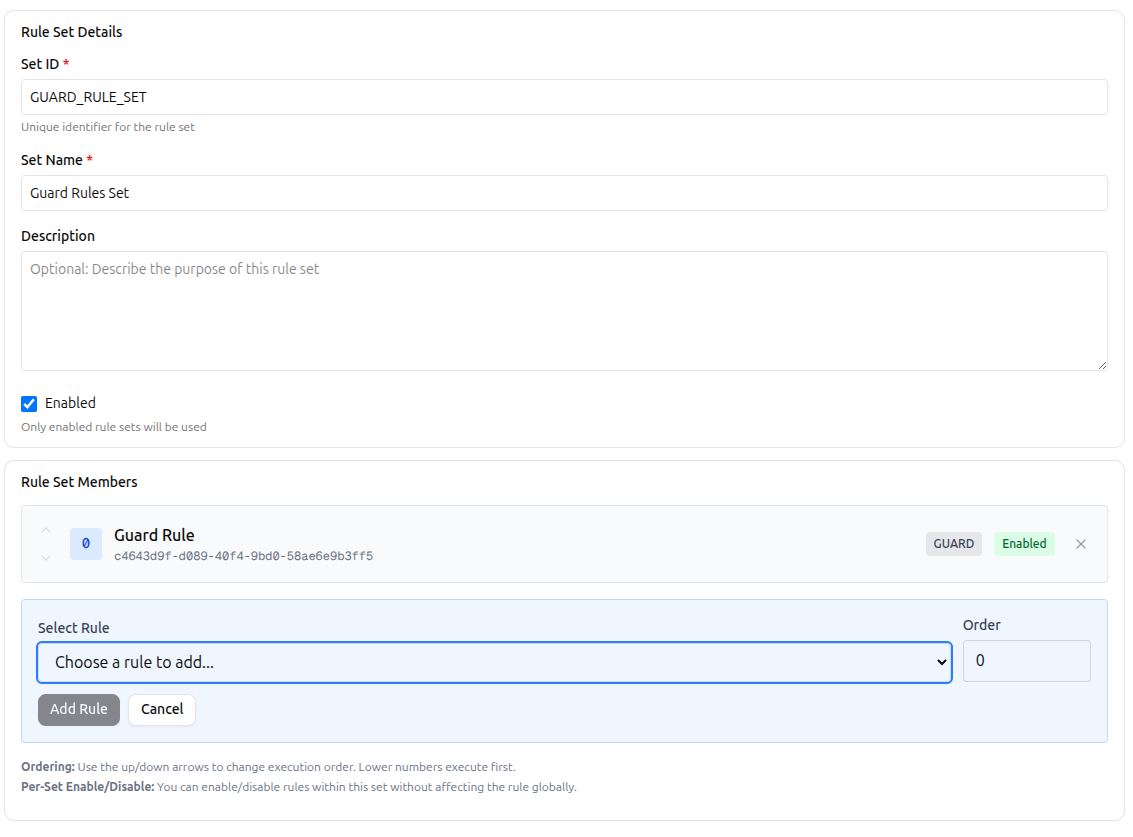 Add rule to set dialog showing rule selection, sequence input, and enabled toggle
Option 2: Create New Rule
- Navigate to Rules > Create Rule
- Create your rule normally
- Return to the set detail page
- Add the newly created rule to the set
Managing Set Members
Each rule in a set is called a "member" with these properties:
Sequence:
- Numeric value controlling execution order
- Lower numbers execute first
- Example: 10, 20, 30, 40 (allows inserting between)
- Can use same number (execution order undefined for ties)
Enabled:
- Controls whether this rule executes within THIS set
- Independent of the rule's global enabled status
- Useful for testing: disable in set A, keep enabled in set B
Actions:
- Move Up/Down: Adjust sequence order
- Enable/Disable: Toggle rule within set
- Remove: Remove rule from set (doesn't delete the rule)
Execution Order
Rules in a set execute in sequence order:
Sequence 10: Check material availability (GUARD)
Sequence 20: Validate work order data (VALIDATION)
Sequence 30: Calculate priority score (CALCULATION)
Sequence 40: Set assignment fields (ASSIGNMENT)
Sequence 50: Notify production team (ACTION)
Best Practices:
- Use increments of 10 (10, 20, 30...) to allow inserting rules later
- Group by priority: 10-20 (GUARD), 30-40 (VALIDATION), etc.
- Document sequence logic in set description
Set Enabled vs. Member Enabled
Three States:
- Set Enabled + Member Enabled = ✅ Rule executes
- Set Enabled + Member Disabled = ❌ Rule doesn't execute (just in this set)
- Set Disabled + Member Enabled = ❌ Rule doesn't execute (entire set off)
Use Cases:
Feature Toggle:
Set: BETA_FEATURES (Enabled: false)
  - Rule: NEW_VALIDATION (Member Enabled: true)
  - Rule: EXPERIMENTAL_CALC (Member Enabled: true)

Toggle the entire set on/off to enable/disable beta features
A/B Testing:
Set A: DISCOUNT_STRATEGY_A (Enabled: true)
  - Rule: VOLUME_DISCOUNT (Member Enabled: true)

Set B: DISCOUNT_STRATEGY_B (Enabled: false)
  - Rule: TIERED_DISCOUNT (Member Enabled: true)

Enable one set at a time to test different strategies
Phased Rollout:
Set: QUALITY_PHASE_1 (Enabled: true)
  - Rule: BASIC_CHECKS (Member Enabled: true)
  - Rule: ADVANCED_CHECKS (Member Enabled: false) // Not ready yet

Enable advanced checks when ready without creating new set
Rule Set vs. Global Rules
Global Rules:
- Not part of any set
- Execute based on entity type and event type
- Use rule priority for ordering
Set Rules:
- Part of one or more sets
- Execute in set sequence order
- Set must be enabled for rules to execute
A Rule Can Be:
- In no sets (global only)
- In one set
- In multiple sets (with different sequence/enabled in each)
Viewing Sets
Rule Sets List Page
Shows all rule sets with:
- Set name and description
- Number of rules in set
- Enabled status
- Actions: Edit, Enable/Disable, Delete
Filters:
- Search by name or ID
- Filter by enabled status
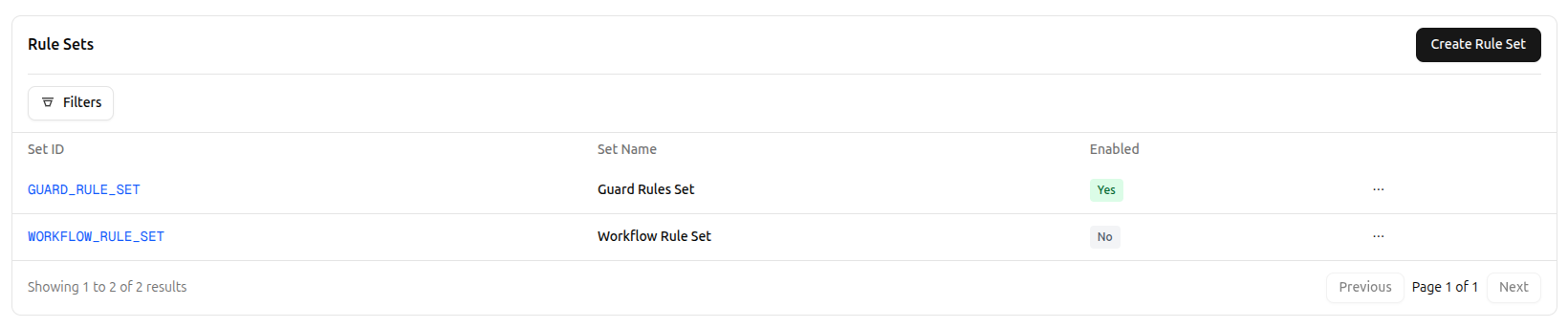 Rule sets list showing all defined sets with member count and enabled status
Use Cases
Quality Control
Set: QUALITY_CONTROL_RULES
Description: "Comprehensive quality checks for manufacturing"

Members:
  10 - Visual Inspection Required (GUARD)
  20 - Measurement Validation (VALIDATION)
  30 - Defect Score Calculation (CALCULATION)
  40 - Quality Status Assignment (ASSIGNMENT)
  50 - QA Team Notification (ACTION)
Approval Workflow
Set: ORDER_APPROVAL_WORKFLOW
Description: "Multi-level order approval process"

Members:
  10 - Check Approval Threshold (VALIDATION)
  20 - Calculate Approval Level (CALCULATION)
  30 - Set Approval Fields (ASSIGNMENT)
  40 - Notify First Approver (ACTION)
  50 - Log Approval Request (ACTION)
Material Planning
Set: MATERIAL_PLANNING
Description: "Material availability and procurement"

Members:
  10 - Block Without Materials (GUARD)
  20 - Check Lead Time (VALIDATION)
  30 - Calculate Shortage (CALCULATION)
  40 - Set Procurement Flag (ASSIGNMENT)
  50 - Notify Material Planner (ACTION)
Customer Onboarding
Set: CUSTOMER_ONBOARDING
Description: "New customer setup and validation"

Members:
  10 - Validate Customer Data (VALIDATION)
  20 - Calculate Credit Limit (CALCULATION)
  30 - Set Default Values (ASSIGNMENT)
  40 - Create Welcome Package (ACTION)
  50 - Notify Account Manager (ACTION)
Best Practices
Keep Sets Focused: Each set should have a clear, single purpose. Don't create catch-all sets.
Use Descriptive Names: Set names should clearly indicate the business domain or workflow.
Document Dependencies: If rules depend on each other, document this in the set description.
Plan Sequences: Use increments of 10 to allow inserting rules later without renumbering.
Test Thoroughly: Test the entire set together to ensure rules work correctly in sequence.
Monitor Performance: Watch execution logs for the entire set to identify slow rules.
Version Control: When modifying a set, consider incrementing a version number in the description.
Start Small: Begin with a few rules, test thoroughly, then add more.
Common Patterns
Progressive Enhancement
Start with basic rules, add advanced ones later:
Phase 1: Basic validation rules (enabled)
Phase 2: Calculation rules (enabled)
Phase 3: Advanced AI rules (disabled, testing)
Environment-Specific Sets
Use sets to manage rules by environment:
Set: PRODUCTION_RULES (Enabled: true)
Set: STAGING_RULES (Enabled: false)
Set: DEV_RULES (Enabled: false)
Domain-Driven Organization
Organize by business domain:
Sets:
  - Sales Rules
  - Finance Rules
  - Operations Rules
  - Compliance Rules
Troubleshooting
Set Not Executing:
- Check set is enabled
- Verify at least one member rule is enabled
- Check member rules have correct entity types
- Review execution logs
Wrong Execution Order:
- Check sequence numbers
- Verify no duplicate sequences
- Review rule priorities (set sequence overrides priority)
Rules Conflicting:
- Review rule conditions for overlaps
- Check if multiple rules set the same field
- Use sequence to control order
- Consider consolidating into single rule
Performance Issues:
- Check execution logs for slow rules
- Review condition complexity
- Consider disabling non-critical rules
- Split into smaller sets
API Access
Manage rule sets programmatically:
# List all sets
curl -X GET "$BASE_URL/api/business_rules/sets" \
  -H "Authorization: Bearer $API_KEY"

# Get set with members
curl -X GET "$BASE_URL/api/business_rules/sets/{id}" \
  -H "Authorization: Bearer $API_KEY"

# Add rule to set
curl -X POST "$BASE_URL/api/business_rules/sets/{id}/members" \
  -H "Authorization: Bearer $API_KEY" \
  -H "Content-Type: application/json" \
  -d '{"ruleId": "rule-uuid", "sequence": 20, "enabled": true}'
See Sets API documentation for complete details.
Next Steps
- Execution Logs - Monitor set execution
- API Reference - Programmatic set management
- Material Availability Tutorial - Apply sets to a real scenario