Creating Rules
Step-by-step guide to creating a business rule, configuring fields, conditions, and actions.
Accessing the Rules Page
- Navigate to Business Rules > Rules
- Click Create Rule
- Fill out the form sections
ℹ️ Requires
business_rules.rules.createfeature permission.
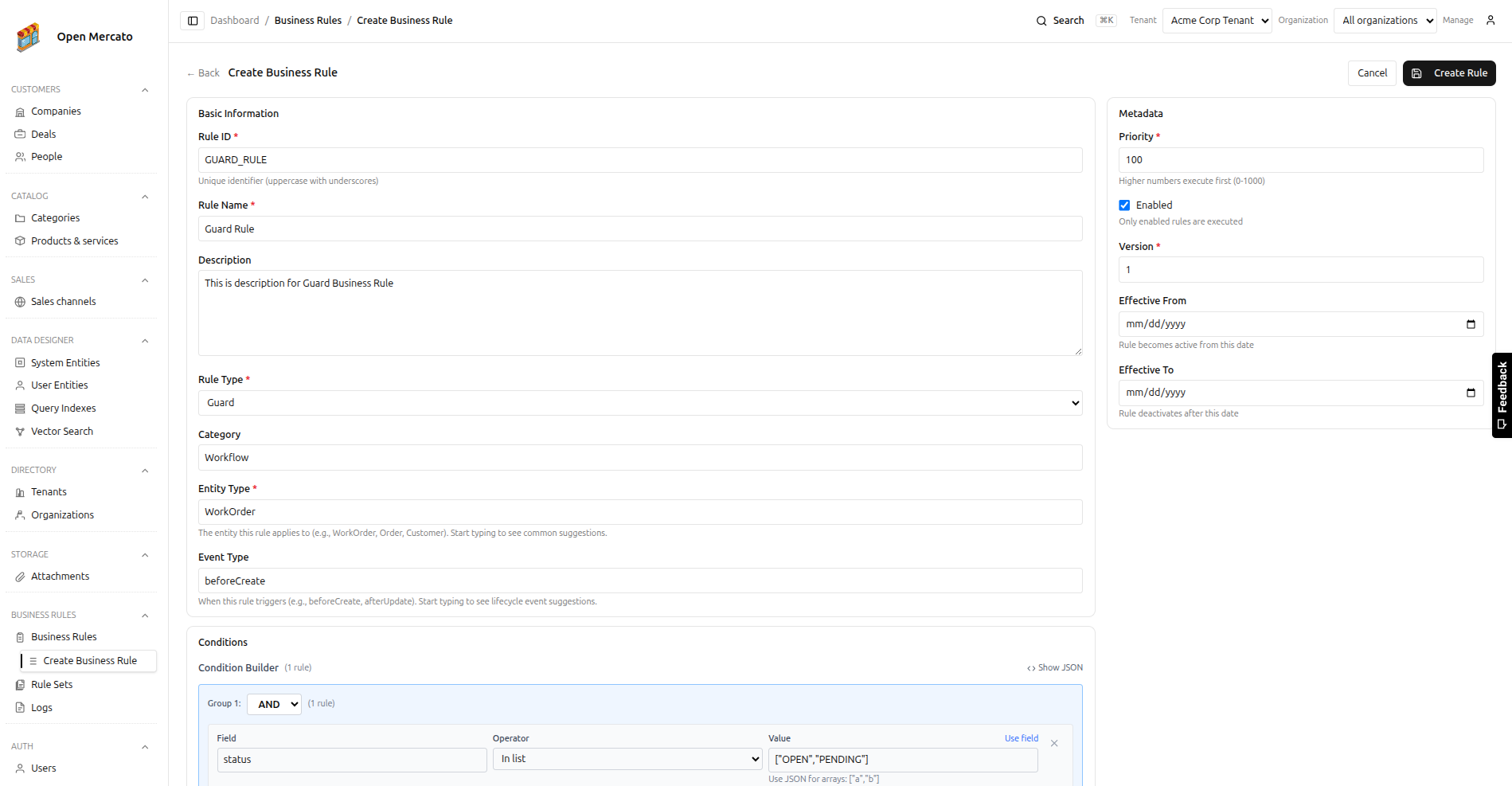
Form Fields
| Field | Required | Format | Description |
|---|---|---|---|
| Rule ID | ✅ | Uppercase, _, max 50 chars | Unique identifier, auto-generated from name. Cannot change after creation. |
| Rule Name | ✅ | Text, max 200 chars | Human-readable name. Use clear, descriptive names (e.g., "Block Work Order Release Without Materials"). |
| Description | Text, max 5000 chars | Business rationale, special cases, policy references, dependencies. | |
| Rule Type | ✅ | Select | GUARD (block/allow), VALIDATION (validate data), CALCULATION (compute values), ACTION (side effects), ASSIGNMENT (auto-populate). See Rule Types. |
| Rule Category | Text, max 50 chars | Logical grouping (e.g., "Material Planning", "Quality Control", "Approval Workflow"). | |
| Entity Type | ✅ | Combobox, max 50 chars | Entity to apply rule to (WorkOrder, Order, Invoice, Customer, Product, User, Task, Ticket, Deal, Contact). Case-sensitive. |
| Event Type | Combobox, max 50 chars | Lifecycle event trigger (beforeCreate/Update/Delete/Save, afterCreate/Update/Delete/Save, onStatusChange, onAssign). Leave empty for any event. |
Metadata
| Field | Default | Range | Description |
|---|---|---|---|
| Priority | 100 | 0-9999 | Execution order (higher first). GUARD: 500-1000, VALIDATION: 300-500, CALCULATION: 200-300, ACTION: 50-200, ASSIGNMENT: 0-100. |
| Enabled | ✅ | Boolean | Active/inactive. Only enabled rules execute. |
| Version | 1 | Integer ≥1 | Audit trail. Increment for significant changes. |
| Effective From | Date | Rule becomes active. Leave empty for immediate activation. | |
| Effective To | Date | Rule becomes inactive. Leave empty for indefinite. |
Effective Date Use Cases:
- Schedule future activation (new policy)
- Temporary promotions/pilots
- Coordinate with system updates
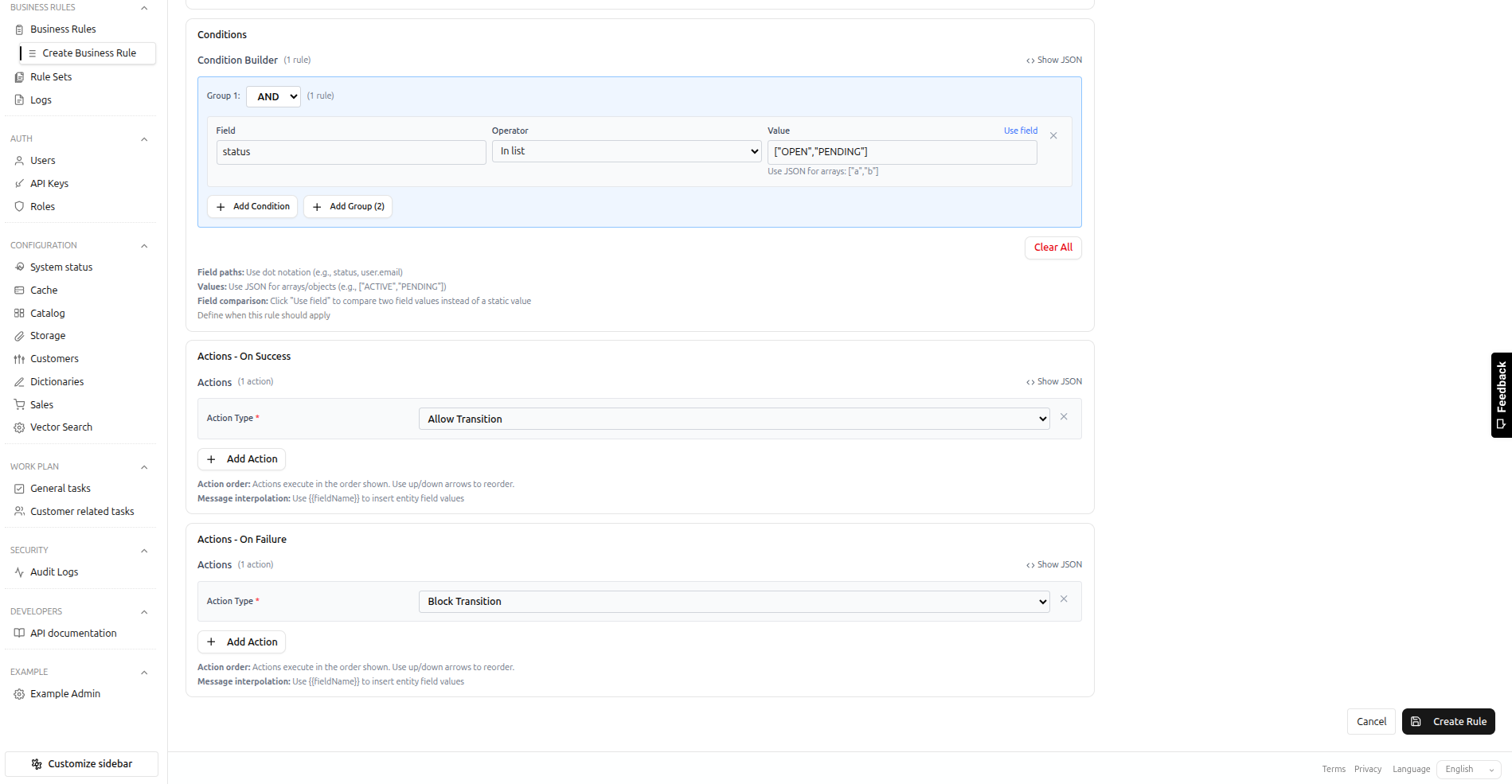
Conditions
Define when the rule applies. See Conditions Guide for details.
Key Points:
- No conditions = always execute (match all)
- Dot notation for fields (
user.email,address.city) - 15 operators
(=, !=, >, <, IN, CONTAINS, STARTS_WITH, MATCHES, IS_EMPTY, etc.) - AND/OR groups, nest up to 10 levels
Actions
Configure success (conditions true) and failure (conditions false) actions. See Actions Guide for details.
Key Points:
- Success: conditions true → execute
- Failure: conditions false → execute (GUARD uses failure to block)
- Sequential execution, message interpolation (
{{field}}) - 10 action types (ALLOW/BLOCK_TRANSITION, LOG, SHOW_ERROR/WARNING/INFO, NOTIFY, SET_FIELD, CALL_WEBHOOK, EMIT_EVENT)
Saving & Validation
Save:
- Click Create Rule
- Rule immediately available (if enabled)
- Redirect to detail page
Validation Errors:
- Error messages appear next to fields
- Scroll up to see all errors
- Fix and retry
Testing
- Manual: Execute API with
dryRun: true - Natural: Trigger event (e.g., update entity)
- Logs: Business Rules > Execution Logs
- Review: Verify conditions and actions
Example: Block Work Order Release Without Materials
Basic Information:
- Rule ID:
BLOCK_WO_RELEASE_WITHOUT_MATERIALS - Rule Name: "Block Work Order Release Without Materials"
- Description: "Prevents releasing work orders to production when required materials are not available in inventory"
- Rule Type: GUARD
- Rule Category: "Material Planning"
- Entity Type: WorkOrder
- Event Type: onStatusChange
Metadata:
- Priority: 800
- Enabled: Yes
- Version: 1
Conditions:
AND:
  - newStatus = "RELEASED"
  - materialsAvailable = false
Failure Actions (execute when conditions true = block):
- BLOCK_TRANSITION
- SHOW_ERROR: "Cannot release work order. Required materials are not available in inventory. Please check material availability and try again."
- NOTIFY: Material planner
Success Actions: None (allow transition)
Next Steps
- Conditions Guide - Build conditional logic
- Actions Guide - Configure actions
- Execution Logs - Monitor and troubleshoot